 Canva Craft
Canva Craft — Turn Your Ideas into Designed Images
Explore Canva Craft for expressive portraits, product visuals, landscapes and typography-led concepts. Discover official Canva Craft examples, adapt a prompt and develop your next visual brief. Craft is coming soon in this independent workspace; start creating now with GPT Image 2.5 and the included image and creative tools.
Image workspace
Sample Image
Official Canva showcase · Reconstructed prompt. Use This Prompt loads the selected model without generating.
Introduction
Meet Canva Craft, Built around the Design Brief
Canva Craft is an image model developed by Canva Research. It connects a written idea with the choices that make a design readable: composition, hierarchy, typography and the relationship between its elements.
Plan the image before rendering
Canva Craft uses a planning stage to interpret subjects, positions, scale and any requested lettering before a rendering stage produces the image. This makes a clear brief a useful starting point. Name the main subject, explain what should lead the composition and describe the setting.
Explore the official creative direction
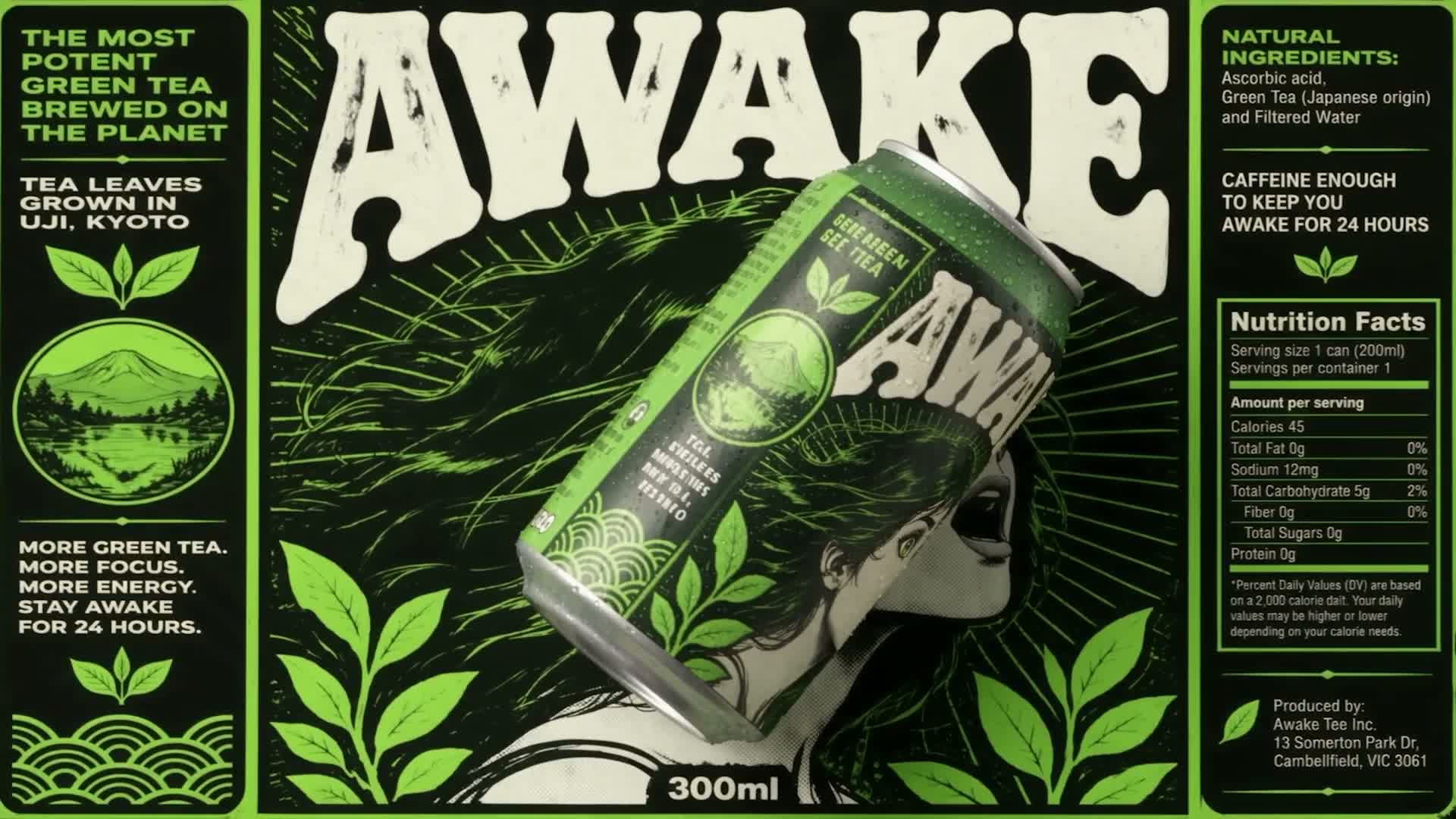
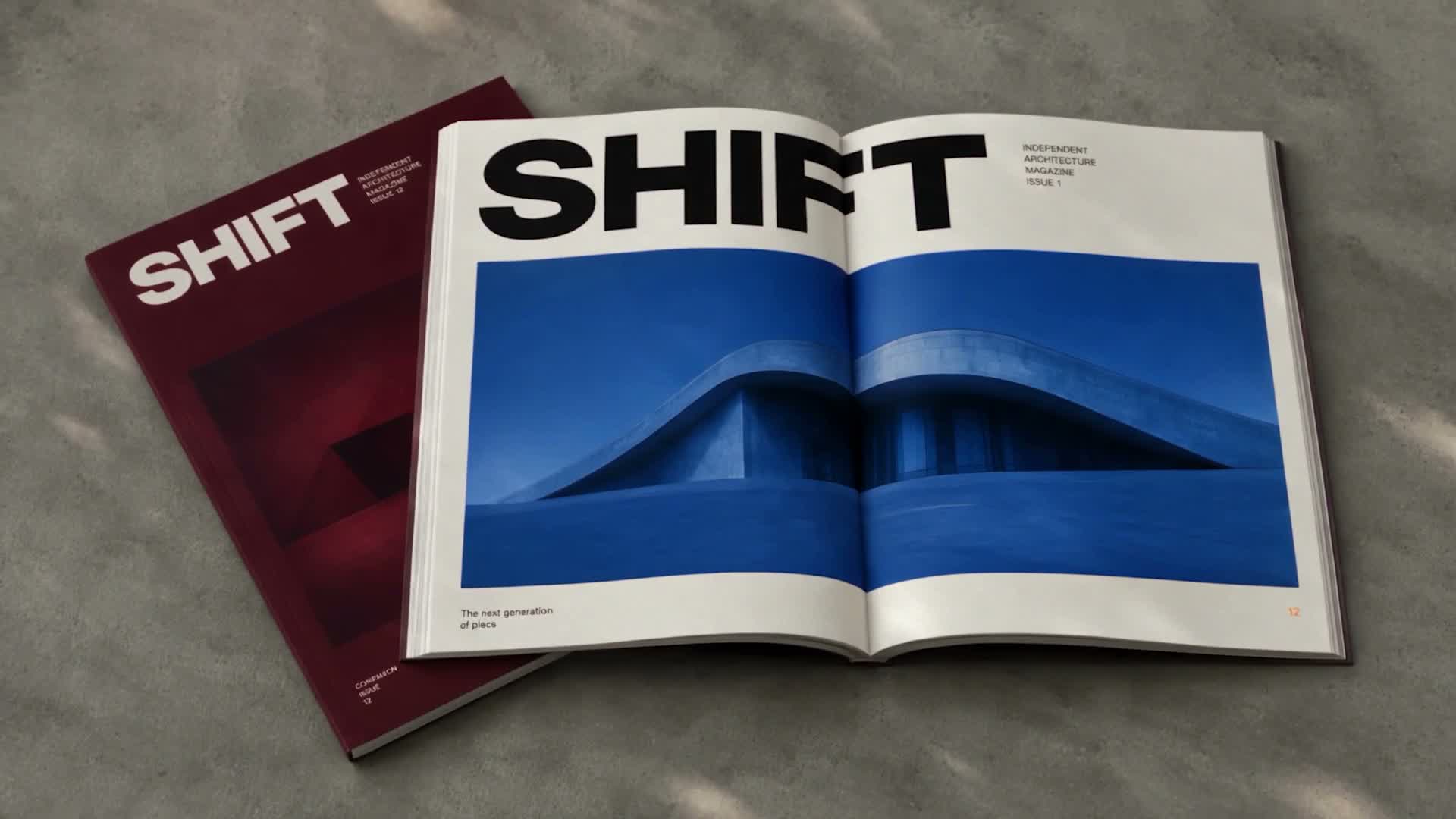
Canva Craft was trained with an emphasis on human-designed templates alongside broader imagery. The official launch examples cover portraits, landscapes, product concepts and graphic compositions. This independent workspace brings those references together with practical tools. The model is coming soon here; GPT Image 2.5 is selected for requests you can make today.
COMING SOON · Craft generation is not connected here yet. The working workspace defaults to GPT Image 2.5. Showcase images and the launch video are from Canva; reconstructed prompts are labeled in the gallery. Official model announcement
How to use
How to Explore Canva Craft and Create an Image
- STEP 1
Choose a Canva Craft reference
Browse the official showcase and choose a composition you want to explore. Click its thumbnail or Use This Prompt to load the description. Original and reconstructed prompts are labeled. Loading a prompt stops the automatic slideshow and leaves the final generation decision with you.
- STEP 2
Make the Canva Craft brief your own
Change the subject, materials or visible wording. Describe the main visual relationship and choose a canvas that fits your destination. Craft is marked coming soon, so the available workspace starts with GPT Image 2.5. Check that selection before choosing its supported quality and output settings.
- STEP 3
Review settings and credits
Read the quote for the selected available model, sign in and submit when the brief is ready. Canva Craft has no active price or generation endpoint on this site yet. Every new request uses its actual model settings; the official showcase does not promise an identical output.
- STEP 4
Inspect the image and continue
Compare the result with the brief, including lettering, object positions and the intended crop. Download a useful image or refine a specific detail for another attempt. Take your Canva Craft-inspired concept into the included photo, design or document tools when it needs further assembly.
Features
Give Canva Craft a Clear Visual Hierarchy
Use Canva Craft as a reason to write a better visual brief. A poster headline, a product photograph and a social graphic each need a different order of attention, even when they share a palette.
Describe relationships rather than a shopping list
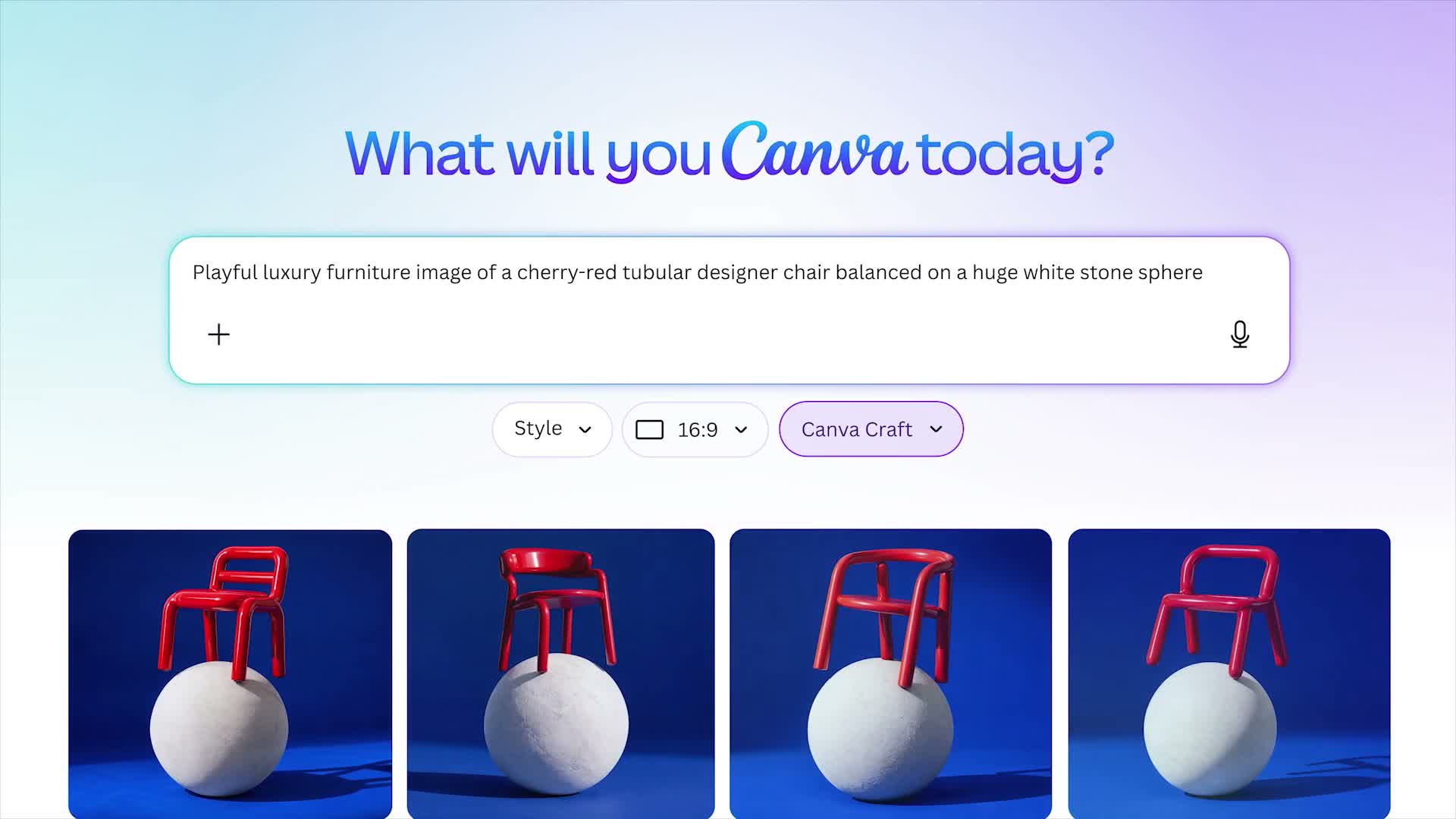
For Canva Craft, explain where the subject belongs relative to the frame and other objects. A small balloon above three distant mountain ridges establishes scale and depth. A chair balanced on a stone sphere creates a different spatial problem. Add the viewpoint and lighting direction when they matter.
Reserve space for the message
A Canva Craft composition can begin with the destination: a portrait event poster, a square product card or a wide campaign banner. Describe a dominant subject and an area of calm space for supporting text. Keep essential details away from the edges.
Build Canva Craft Concepts with Readable Text
Canva Craft is presented by its developer as a design-focused model with text rendering in 55 languages. Give every important phrase an explicit role, then review the generated words as carefully as the picture.
Specify a small number of exact phrases
With Canva Craft, put a headline in quotation marks and state its position, relative size and color. Add a short supporting line only when the layout needs it. Large lettering is easier to inspect than a dense menu or long paragraph.
Keep final wording under your control
Canva Craft does not remove the need to check spelling, dates, punctuation and names. Inspect small text at full resolution and compare it with the prompt. If exact production typography matters, use the included creative editors to assemble approved lettering.
Explore Canva Craft across Materials and Styles
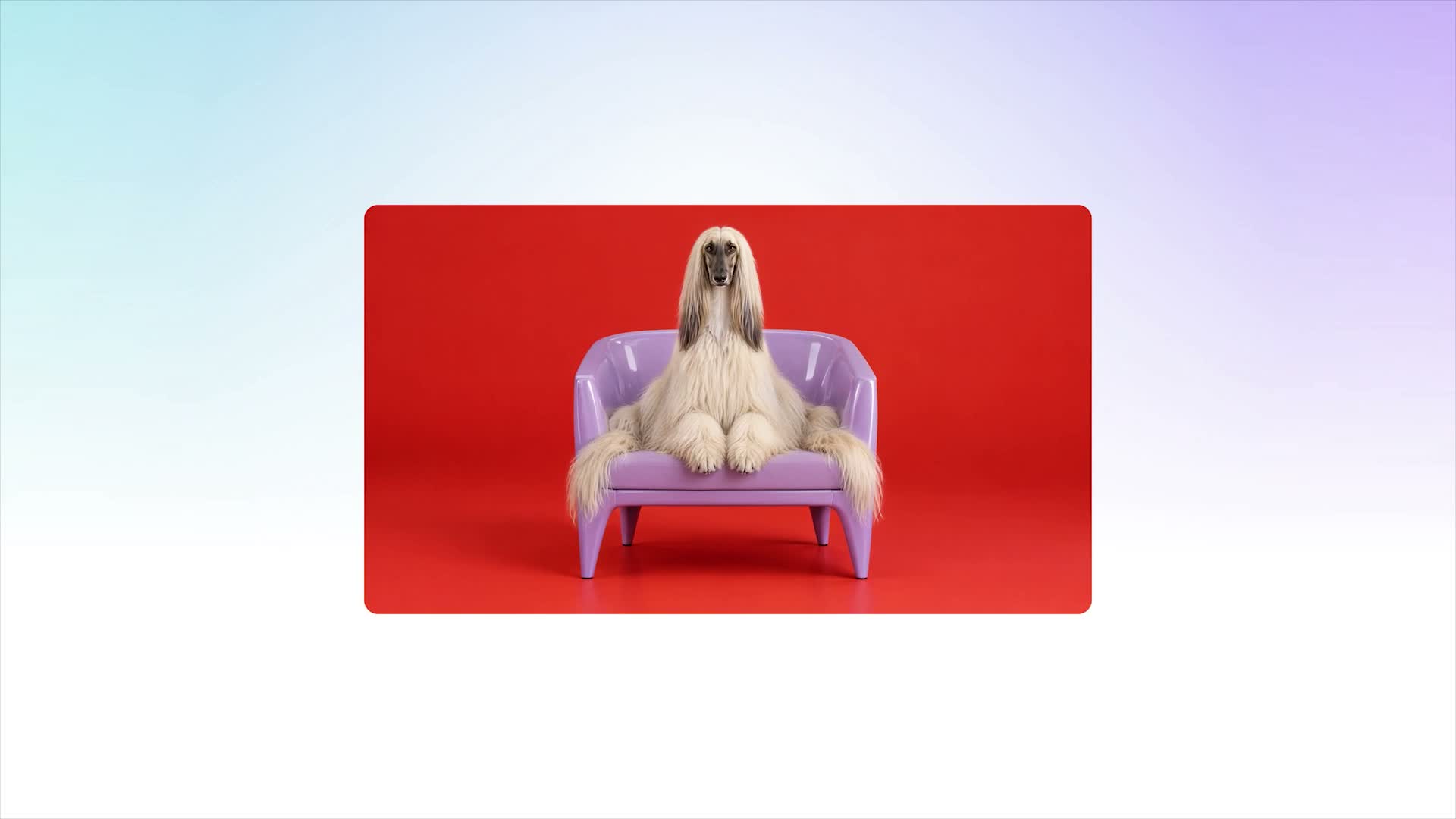
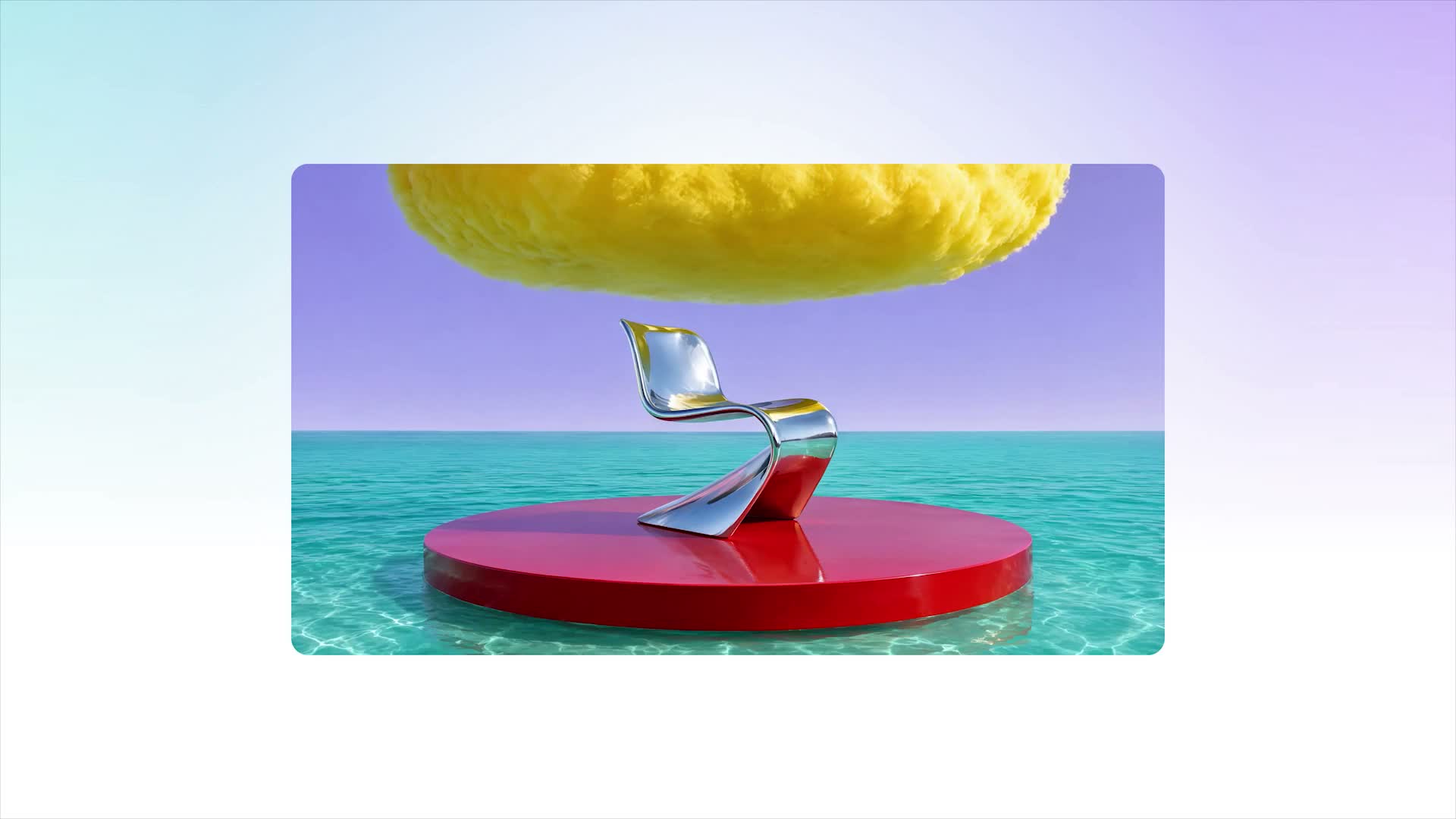
The Canva Craft launch gallery combines photographic detail with imaginative design. Use the references to choose a direction, then describe the materials, palette and light that make your own scene distinctive.
Give product concepts a physical surface
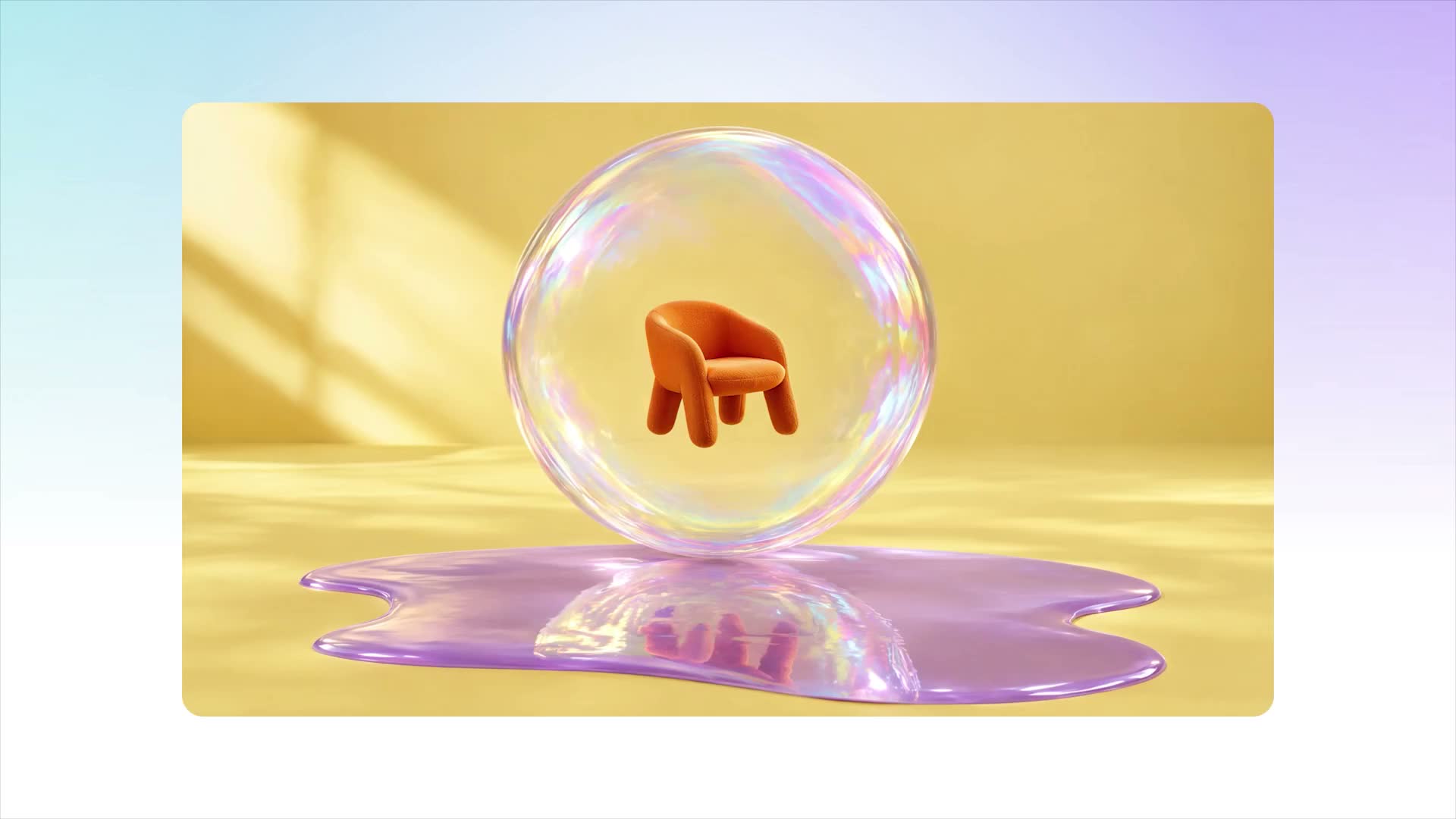
A Canva Craft product brief can name frosted glass, polished metal, woven fabric or folded paper. Explain how light interacts with those surfaces and where the product sits. The official furniture examples show bold color and unusual object relationships. Adapt the creative idea to your own subject rather than copying every feature.
Connect atmosphere with composition
For a Canva Craft landscape, describe foreground detail, middle-distance subjects and distant atmosphere. For an editorial portrait, describe the expression, crop and light falling across the face. Those decisions give you specific things to evaluate.
Choose the Canva Craft Canvas for Your Destination
Canva Craft is announced with output up to 2K. The Canva product offers more than thirty aspect ratios, while the public image-generation API currently documents six choices. The distinction matters when planning a new integration.
Match the ratio to the finished placement
The documented Canva Craft API shapes are square, wide 16:9, tall 9:16, landscape 3:2, portrait 2:3 and portrait 4:5. Pick a shape that leaves room for the subject and message. The current fallback workspace has its own controls, so inspect its selected settings. A resolution label does not replace checking the actual width, height and crop of the downloaded file.
Understand the price before submission
Canva Craft pricing is not enabled on this site yet. Official API jobs consume the signed-in Canva user’s AI allowance, and a verified dollar-per-image supply price has not been established here. Our cost conversion rule is one US cent per credit, rounded up for each output. A future quote will require a confirmed provider price; unavailable generation cannot reserve or spend credits.
Take a Canva Craft Reference into Your Next Draft
Start from the Canva Craft showcase, load a useful prompt and make a small creative decision. The supplied workspace, image tools and creative editors help carry a selected draft into the next stage of your project.
Use the example without submitting a request
The Canva Craft examples appear first in the image gallery. They advance every ten seconds until you choose one. Clicking a thumbnail or Use This Prompt loads the description and stops the slideshow. It does not generate or spend credits. Original demo prompts are distinguished from reconstructed descriptions, and current requests use whichever available model you have selected.
Keep the source and result distinguishable
The Canva Craft launch video is an edited product demonstration, not proof of generated motion or a timing benchmark. Its showcase images belong to the official presentation and are labeled accordingly. Results you create here belong in your private task history. Review the image, download a useful version and continue with separate video or editing tools when your project needs another medium.
Example prompts
Canva Craft furniture composition
Playful luxury furniture image of a cherry-red tubular designer chair balanced on a huge white stone sphere
Canva Craft poster direction
Design a vertical poster for a fictional evening art market. Exact headline "AFTER HOURS" at the top, exact line "FRIDAY 7 PM" below. Three paper-cut flowers in coral, cobalt and butter yellow on deep navy. Clear reading order, generous margins and only the specified text.
Creative workflows
Illustrative ideas for your next project.
Creative workflow examples

Choose a reference, describe the subject and load a prompt before deciding whether to generate. GPT Image 2.5 is available while Canva Craft is coming soon.

Describe materials, color and light, then inspect the generated composition. Keep the official showcase separate from images made with the selected model.

Write the exact headline, its position and the intended canvas. Check spelling and layout before taking an image into a creative editor.

Click a showcase image to stop the slideshow and load its prompt. Change the subject and palette to make the brief relevant to your own post.

Move a useful draft into the included photo and image tools. Each available tool has its own supported inputs, settings and credit quote.

Try a different viewpoint or material while keeping the rest of the brief stable. Review each result against the intended use rather than a promise of an identical showcase image.
Canva Craft Pricing and Credit Plans
Cancel anytime
Lite
50% off0.025 / credit
Billed $ yearly179· Save $179.8
Video Models



Image Models


- Includes GPT Image 2.5 and available premium models
- Up to 1 batch generation task
- Standard generation speed
- Standard generation success rate
- Standard customer support
- Commercial Use License
Standard
50% off0.017 / credit
Billed $ yearly299· Save $299.8
Video Models
Image Models
- Includes GPT Image 2.5 and available premium models
- Up to 4 batch generation tasks
- Priority processing speed
- High generation success rate
- Priority customer support
- Commercial Use License
Pro
50% off0.014 / credit
Billed $ yearly599· Save $599.8
Video Models
Image Models
- Includes GPT Image 2.5 and available premium models
- Up to 10 batch generation tasks
- Fastest generation speed
- High generation success rate
- Dedicated account manager
- Commercial Use License
Max
50% off0.012 / credit
Billed $ yearly1,199· Save $1,199.8
Video Models
Image Models
- Includes GPT Image 2.5 and available premium models
- Up to 10 batch generation tasks
- Fastest generation speed
- High generation success rate
- Dedicated account manager
- Commercial Use License
Pay safely and securely with















FAQ
Frequently asked questions
What is Canva Craft?
Canva Craft is Canva Research’s design-focused image model. It plans composition before rendering, with attention to visual hierarchy and text. This independent site collects official references and reusable prompts alongside a creative workspace; it is not the official Canva website.
Can I generate with Canva Craft here today?
Canva Craft is coming soon here and remains disabled in the model menu. GPT Image 2.5 is the available default. Loading a showcase prompt does not switch to a hidden model or submit generation. The selected model determines the actual inputs and output.
Are the Canva Craft examples real results from this site?
The new showcase uses frames and images from Canva’s official launch presentation. Where no original prompt was published, a reconstructed description is clearly labeled. These are creative starting points, not claims that this site produced those images or reproduced them with the fallback model.
What does Canva Craft generation cost?
Canva Craft has no active site quote until a provider supply price is verified. The official API consumes a Canva user’s allowance. Our accounting conversion is USD 0.01 per credit, rounded up per output; current available models show their own quotes before submission.
Does Canva Craft return editable layers or videos?
Canva Craft is an image model. Canva’s Magic Layers conversion is a separate service and is not included by an ordinary image response. The official film is an edited demonstration. Use separately available creative editors or video models for those next steps.
How should I prepare a Canva Craft text prompt?
Name the subject, intended format, composition and lighting, then provide any exact visible words. Keep important lettering short and review it closely. Canva Craft references can guide your brief, but every result needs checking before you publish a design.
CTA
Start Your Next Canva Craft-Inspired Image
Choose an official reference, write your own Canva Craft brief and check the available model. Create with GPT Image 2.5 today while Craft is coming soon, then refine a useful result with the included creative tools.
Explore Canva Craft prompts